START HERE
Inspect and convert graphics, then export them as new files
Open a graphic from the canvas or drop it there. PixelFoundry then
analyzes grid suitability, colors, and transparency, recommends a
tool, and sets suitable starting values. You deliberately start the
change afterward.
PixelFoundry belongs to NoAliasTools. Your account, Cloud files
and plans are at
noaliastools.com.
-
Open a graphic:
Choose a file or drop it in the center of the canvas. The
initial view shows the complete image.
-
Analyze image:
Inspect the grid, color ramps, and transparency, then review the
suggested values.
-
Apply tool:
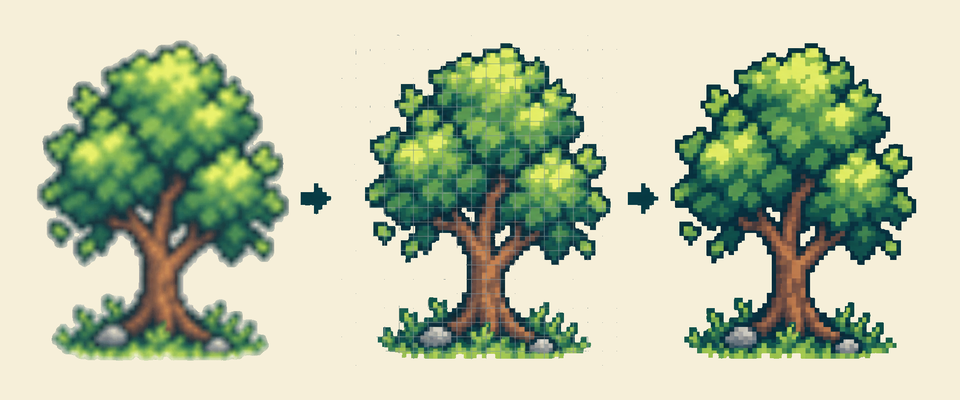
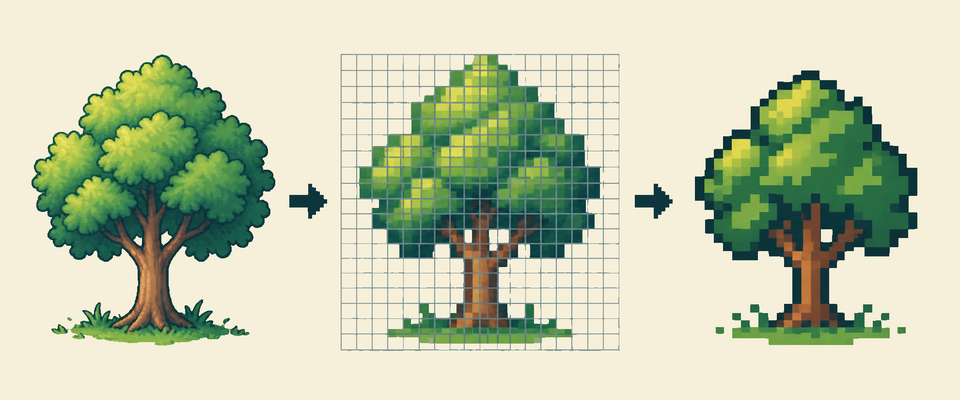
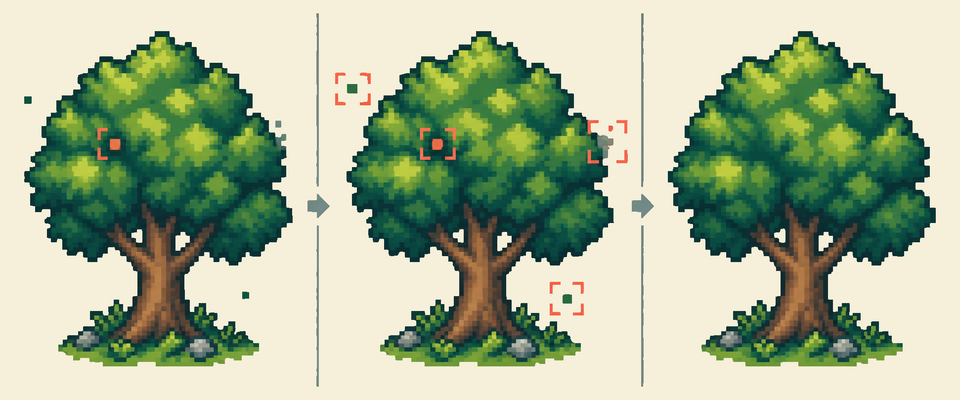
Deliberately start Reconstruct grid, Create pixel art, or Clean
up image.
-
Review the result:
Use the original, result, comparison, and diagnostic
overlays.
-
Continue working:
Run more steps on the active version or select an earlier
version.
-
Export:
Save the active version as a new file.
OPTIONS PANEL
Understand shared settings
Maximum color count
Limits the calculated palette; Unlimited preserves all
calculated colors.
Transparency threshold
Determines when pixels become fully transparent or Cleanup
converts them to binary alpha.
Minimum coverage
For Recover, determines how much opaque source area is required
for an opaque target pixel.
Color tolerance
Groups similar source colors when choosing a representative
color.
Tooltips explain the current effect of a setting and, for disabled
controls, the specific reason.
CANVAS TOOLBAR
Canvas, comparison, and diagnostic overlays
-
Original / Result
selects the main version shown in the preview.
-
Compare
reveals the other version as an adjustable split.
-
Onion
places the other version semi-transparently over the main view
and disables the split.
-
Workspace zoom
starts with Fit to view after opening and changes only the
display. The mouse wheel keeps the image point under the pointer
fixed.
-
Background
shows transparency as a checkerboard or over a selected solid
color.
-
Pixel grid
becomes visible at a sufficiently large zoom level.
-
Recover mesh
shows detected lines over the corresponding original.
-
Cleanup findings
marks static and temporal findings in the current result
frame.
-
Processing display
shows the current inspection step only in the centered dialog.
The image remains visually unchanged during analysis and
processing.
View options are not processing steps.
Zoom, background, comparison, and overlays never become part of
the exported file.
RIGHT PANEL
Work with the processing history
The original and completed steps remain available as versions. A new
step always processes the currently selected version. If you select
an earlier version and continue processing, a new branch is created;
existing versions are not overwritten.
Undo moves to the parent version. Redo returns to the most recently
undone version. Export always uses the currently selected version.
MULTI-FRAME FILES
Process animations
GIF, Animated WebP, and APNG are loaded as a shared frame sequence.
Playback and frame navigation are for inspection; processing runs
across all frames. Duration, order, and loop remain in the internal
document.
Recover uses a shared mesh and Convert uses a shared palette for the
sequence. PixelFoundry currently does not edit frame durations or
order.
FILE FORMATS
Import and export
Import
PNG, APNG, JPEG, WebP, Animated WebP, and GIF.
Static export
RGBA PNG, indexed PNG with up to 256 colors, and lossless
WebP.
Animation export
GIF, APNG, and lossless Animated WebP.
Project export
PNG frame sequence or PNG spritesheet with versioned JSON
metadata as a ZIP, plus a validated SpriteForge project
handoff.
Formats that do not apply are disabled. Every export creates a new
file and never overwrites the source file. Workspace zoom does not
change export dimensions.
Under Output size, the result can remain at its native size, be
enlarged with an integer nearest-neighbor factor, or be set exactly
to the original source dimensions. The export check shows the actual
dimensions and aspect ratio. If the source dimensions do not fit
equal-sized pixel blocks, it reports the unavoidable rounding before
saving.
Project export contract v2 stores canvas and sprite sheet
rectangles, origin, optional pivot, frame duration, loop, blend, and
disposal. This makes it possible to reconstruct every frame
completely from either ZIP variant.
SpriteForge project handoff v1 protects its canonical payload and
every RGBA frame with SHA-256. It remains disabled whenever
SpriteForge could not preserve dimensions, palette, alpha, timing,
playback, composition, frame geometry, or the shared pivot without
loss.
Open in SpriteForge hands the same handoff to SpriteForge in a new
tab without a download. It is available whenever the SpriteForge
handoff export is; if the browser blocks the new tab, the export
remains.
Before saving, the export check shows the actual dimensions and
lists unavoidable changes. These include GIF palette reduction,
binary GIF transparency, rounded frame durations, reset blend and
disposal values, and omitted EXIF, XMP, and color-profile metadata.
Unsupported combinations are blocked before the encoder runs.
INSTALLABLE APP
Install PixelFoundry and start offline
If the browser supports a direct installation prompt, the action
appears in the Help menu. On iPhone and iPad it opens instructions
for Add to Home Screen. Other browsers show the appropriate path
through their own installation menu.
The offline core stores only the application.
Loaded graphics and generated results are neither written to the
service-worker cache nor sent to a server. They remain in the
current browser window and must be exported before an
update.
An available update also appears in the Help menu. It is activated
only after explicit confirmation and then reloads the application.
WHEN SOMETHING FAILS
Errors and next steps
Error messages identify the affected phase, the known or unexpected
cause, and a next step. Unexpected runtime and worker errors also
receive a diagnostic ID for troubleshooting.
-
File is rejected:
Check the format, file size, and access permissions.
-
Automatic Recover fails:
Check the grid values or switch to Manual grid.
-
Export fails:
Choose a format that matches the active still image or
animation.
Automatic grid detection loads about 16 MB of uncompressed program
data on first use. Transfer size depends on server compression.
Manual grid, Convert, and Cleanup do not need OpenCV.
CONTROLS
Keyboard and mouse
Ctrl/Cmd + OOpen a graphic.
Ctrl/Cmd + ZMove to the parent of the active version.
Ctrl/Cmd + YRedo the most recently undone version change.
Ctrl/Cmd + Shift + ZRedo on keyboards without Ctrl/Cmd + Y.
Arrow keysSwitch menus and select menu items.
EscapeClose an open menu or tooltip.
Mouse wheelZoom around the image point under the mouse pointer.
Middle mouse button + dragPan the zoomed canvas view.
Space + dragTemporarily pan the canvas view with the hand tool.
Two fingersZoom and pan the canvas view at the same time on touch
devices.
 Help